
Build Your Literature Review AI Engine
What if, while you sipped your coffee, the most relevant papers for your topic were finding their way into your library, downloading themselves, one by one?
And what if, by the time the download finished, you also had this: a reading schedule for the week, with a checklist of exactly what to notice.
What if you could get ninety percent of the gathering for your literature review done in a fraction of the time anticipated? Like that: Done!
Well hello everybody, and I want to welcome you to Office Hours with Dr. Guy, where reading is rampant, citations are scintillating, and the finished, defended dissertation is seen as the doorway through which you can do your ultimate life's work and service.
Today, we are building something special together: your own AI-supercharged literature review engine. Not a toy. A real engine, sitting on your own computer.
Here's the problem: most doctoral students dabble. A question here, a chat there. Dabbling gets you tastes. An engine gets you a literature review.
First we build the engine. Then we run six experiments, each bigger than the last, until it finds, files, and plans, and finally remembers you.
Chapter One: The Setup
I know: setup is nobody's favorite part. But this is twenty minutes, once, and it buys back hundreds of hours of searching, downloading, and organizing.
Step One: Install Claude
This is the heart of your engine. Everything else we do today connects to it. This works on Windows and Mac.
First things first: open your browser and head to claude.ai. Claude is a highly, highly capable AI, one of the best in the world. If you already have an account, just sign in. If you don't, click over to pricing. Twenty dollars is plenty. Sign up. Once you're signed up, go ahead and log in.
Now, Claude lives on the internet. We want it on your computer. So click your name in the bottom left-hand corner, and select the option to download the app. Now, careful here: you want the Claude Desktop app. That's the one that lives with you, on your machine, right alongside your files. Go ahead and start that download.
You can download Claude here: https://claude.ai
Once it's downloaded, go ahead and launch the installer. This won't take long at all. When the app launches, it's going to ask you to log in one more time. I know, I know. Twice. Do it anyway. This is the last time, I promise.
There it is: the beginnings of your engine, right on your computer.
One more thing for my Windows users: right-click that Claude icon down on your taskbar and select Pin to Taskbar. You'll be visiting this engine every day from now on. Keep it one click away.
Step Two: Install Zotero
If Claude is the engine, Zotero is the garage, the library where every source your engine brings home gets parked and kept safe.
Head over to zotero.org. Download the installer that matches your computer, Windows or Mac. While that's downloading, let me tell you why I love this tool. Zotero is a free scholarly source manager. And here's the kicker: it is highly, highly capable of working alongside AI. That's why it's part of your engine.
You can download Zotero here: https://zotero.org
Once it's downloaded, go ahead and install it, and then launch the application. You'll see your empty library sitting there, all those empty shelves, just waiting. Don't worry. We're about to fill them.
Now, the most important step. Click the sync button in the top right and log in. From now on your sources also live in the cloud, safe, whatever happens to this machine. And if you've used Zotero before, watch this: all your prior sources come flowing right back down. Nothing lost. That's the sync doing its job.
Step Three: Install Git
You'll never open this one. It works quietly in the background, helping your engine keep track of your work: every change, remembered.
Search for Git for Windows and click through. And naturally, my Mac friends, you'll search for Git for Mac instead. Same idea. Either way, download that installer. This one's free too. Everything in your engine today is either free or twenty dollars. I like that.
You can download Git for Windows here: https://claude.ai
You can download Git for Mac (via Xcode Command Line tools, pick the item that appears atop this list) here: https://developer.apple.com/download/all/?q=command%20line%20tools
Launch the installer. Now, this installer is going to ask you loads of questions: screen after screen of options you have never heard of. Here's my advice: just keep hitting next. The defaults are fine. You don't need to understand a single one of those screens. Next, next, next.
Step Four: Install Python
Think of Python as the fuel line: the scripts your engine runs to move sources around all run on it.
Head to python.org to grab it. Download the latest installer and start the installation.
You can download python here: https://python.org
Now listen, this part matters: if it asks whether to add Python to PATH, say yes. Check that box. That's what lets your engine actually find Python later. Everything else, same as before. Keep clicking next.
That PATH checkbox: don't skip it.
And for my Windows users, one more: if it asks whether to disable the path length limit, click that too. Windows has funny little install quirks like this. No need to worry. It's just Windows being Windows. Click it and move on.
Step Five: Pin the Zotero Folder
This one's small but mighty: we're going to pin your Zotero folder so your whole library stays exactly one click away.
Open your file explorer and follow me. Go to This PC, then Local Disk. Open the Users folder, and in there, you'll find yourself. Your own username. Click into your folder and look for a folder simply called Zotero. There it is. Now right-click that Zotero folder and select Pin to Quick Access. Done. My Mac users, you have it even easier: find that same Zotero folder in your home folder and simply drag it onto your Favorites in the sidebar. Either way, from this moment on, your library is one click from anywhere. Trust me, future you says thank you.
Step Six: Restart Your Computer
I know, it feels anticlimactic, but every tool you just installed needs to load fresh. Give your new engine a clean start.
And while it restarts, pour yourself a coffee. Because I want you to sit there for a second and appreciate what you just did. Twenty minutes of clicking next. And in return, dozens, maybe hundreds of hours of searching handed back to you.
Step Seven: Start Your Engine
Everything's installed. Now we turn the key. We're going to open Claude, point it at your Zotero folder, and let these two meet.
Launch Claude, and look along the top. You'll see a tab called Code. Click it. This is a different side of Claude. This is where it stops being a chatbot and starts being an engine. Now, down in the bottom right corner, you can choose which model you're running. Click that, and choose the most capable model available to you, the one at the very top of the list. We want full horsepower today.
Then click Select Folder. Remember that pin from step five? Use it. Find your Zotero folder in your Quick Access or Favorites, and choose it. If Claude asks whether to trust this workspace, click trust.
Now we make the introduction. Type something like:
This is my Zotero library. Please familiarize yourself with it.
What's happening here is you're introducing two strangers who are about to become great friends. Claude is walking around Zotero's house, learning where everything is kept.
Occasionally it'll stop and ask permission to run certain operations. That's good manners, not trouble. When you see the option to always allow, go ahead and click it.
And when Claude and Zotero are done talking, Claude reports back: a little overview of everything it learned about your library. And that, my friend, is it. Your engine is built.
Experiment A: Send the Engine Hunting
Which means it's time to run it. Experiment A: we send this engine hunting. Let's find out what it can actually do.
For our first experiment, we're simply going to tell Claude about the dissertation and ask it to find some sources. Watch what I type, because the wording matters. Here we go.
My dissertation is about the leadership approaches of nurse leaders in hospitals in the United States. Please suggest the most important papers that I should include in my literature review. Give me the five best options. Please avoid paywalls and anything requiring a payment. In the end, provide me APA references, direct text links to the sources, and a short two-sentence summary of what the source has to offer.
And look at what that prompt does. It names the topic. It caps the list at five. It rules out paywalls, so everything comes back readable. And it tells Claude exactly what to hand back: references, links, and a summary for each. Precision in, precision out. Then hit enter, and let the engine run.
You've probably tried this before. Notice what precise wording buys you.
These are real papers, on topic, with links and summaries, and no paywalls. Now, here's your job, and it never goes away: you are the scholar. The engine suggests; you decide. Skim those summaries and ask, which of these actually belongs in my literature review?
Experiment B: File Them into Zotero
Experiment B is where things get fun. You've chosen your papers. Now watch the engine file every one of them into Zotero for you.
And this is where we leave behind what you've probably done before. We're going to ask Claude to download and catalogue these sources directly into Zotero. So I type:
All these papers seem quite useful. Go ahead and integrate them into my Zotero library.
That's it. That's the whole prompt.
Now, there may be a little trial and error here. That's normal. Claude will work it out. Just keep clicking always allow whenever it asks.
Here's what you're looking for over in Zotero: each source should show a little red PDF icon next to it. That icon means the actual article is attached, not just the reference. If you don't see those red icons, just tell Claude:
I want the PDF files themselves downloaded and attached in Zotero.
Say it plainly, and it will go get them.
And just like that, Claude is working inside your Zotero database directly. Finding, filing, attaching. This is the engine running.
Experiment C: Delve Deeper
Experiment C: we delve. Five papers is a start, but a literature review is built on dozens. So now we let the engine follow the threads deeper into the literature.
Because Claude is working with your Zotero now, it knows what you already have. So you can simply ask:
Find me more sources similar to the ones in my library.
It expands from what's already on your shelves.
And by the way, if you're getting tired of granting permission every time, you can switch Claude into auto mode and let it work without asking.
Notice what's happening underneath all this. With every exchange, Claude is gaining knowledge about you and about your study. And the more it knows, the more reliably it finds (and evaluates) sources that genuinely serve your dissertation. This isn't a search box anymore. It's an engine that's learning the shape of your work.
So, same move as before. You look over what it found (you're still the scholar here) and then you ask it to integrate the keepers into Zotero. And when you do, be explicit: tell it to download the PDF files themselves, not just the references. Something like:
Please integrate these into my Zotero library, and download and attach the PDF for each one.
The engine is happy to do it. You just have to say it out loud.
And would you look at that. The engine is really working now. Sources directly connected to your topic are trickling into your Zotero, one after another. PDFs downloading, references forming, everything filed. A few minutes ago this library was empty, and you haven't opened a single database search page. This, team, is what driving the engine feels like.
Experiment D: Let It Plan Your Reading
Experiment D, and this is the one that changes your week. Your engine knows your library now. So let's have it plan your reading, day by day.
Because Claude now has real, intimate knowledge of your actual library (not a hypothetical one), you can ask it questions a librarian couldn't answer. Watch this.
Considering that my dissertation is about leadership approaches of nurse leaders, which of the papers currently in my Zotero is probably the first that I should read?
One question, and your engine weighs everything on your shelves and hands you a starting line.
And look at how it answers. This is like having a trusted co-researcher sitting beside you, one who has actually read your library, and can tell you which paper should lead your reading practice, and why. Not a guess. A reasoned recommendation, grounded in what you actually have.
But your engine can do so much more than pick a starting point. So I ask:
Design for me a reading plan for this week to be able to read each of these articles. Give me a daily structure. Tell me what specific sections in each of the articles would be most worth reading.
Now think about what I just asked for. Not just what to read: when to read it, and which sections of each article deserve my attention. Because team, you don't read a scholarly article cover to cover like a novel. You read the sections that are worth your reading. And your engine just told you which ones those are.
This is what I mean when I say your engine is a co-researcher. It is fully informed about what you have, and it can actively direct when, where, and how you read. And we can push it one step further. Let's ask for a checklist.
Great. Create for me a PDF file that has checkboxes for each day. Give me specific steps for each day. Include statements about what I should notice while I am reading. When you are done, launch the PDF so I can see it.
And notice that one line: what I should notice while I am reading. That's the difference between just reading and reading with purpose. You'll walk into every article already knowing what you're looking for.
And there it is: a PDF of your entire reading schedule for the week. Checkboxes for every day. Specific sections to read. Notes on what to watch for. Print it, stick it on the wall, and follow it. And I want you to see what just happened, because this is bigger than it looks. You don't just have an article downloader anymore. Your engine can direct your reading practice. And when a week goes sideways, when the reading isn't landing, you can come back and tell it, and it will adjust the plan. So give it a try this week. Follow its advice. One week of directed reading will surprise you.
Experiment E: Commission the Definitive Library
And now, Experiment E: the grand finale. So far, we've gathered papers a handful at a time. This time, we commission the whole library in a single ask.
Alright, deep breath. It's time to have your engine build you a definitive library for your dissertation. Now, this is a big task. The engine is going to run for many minutes on this one, maybe the better part of an hour, and that's exactly as it should be. Here's what I type.
Very good. Now, I want you to do a more exhaustive literature downloading. This will take about fifteen to twenty-five minutes. I want you to download me around thirty papers that intersect the dissertation topic we are discussing. Try to keep it in the United States, or a similar western-country, context. Download them, integrate them, and attach them into Zotero. I want a definitive library of papers concerning this topic. Go for it.
And then you hit enter, and you let it go. Think about what you just did. In my day (and probably in yours) building a library like this meant weeks of database searches, downloading one PDF at a time, naming files, filing files. You just commissioned all of it in one paragraph. Thirty papers, found, downloaded, and filed, while you go live your life.
And there they go. Your engine is integrating source after source directly into your Zotero library. It's out there locating papers, weighing each one against your topic, deciding whether it earns a place, and adding it to your expanding database. And notice: these aren't random papers about nursing. They intersect your topic (leadership, nurse leaders, hospitals) because your engine knows your study now. I've got to tell you, team: I've watched a lot of literature reviews get built the hard way. Watching this happen in minutes is very, very exciting.
And there you have it. Dozens of the most relevant papers on your topic, found, downloaded, and filed in a single sitting. And here's what I want you to sit with: your engine is now fully aware of your library. Every paper on those shelves, it knows. Now imagine where this goes next. Imagine handing this engine your entire dissertation draft and asking it to point out stronger sources for the claims you're making. That's the road ahead. What you have today is a fully capable co-researcher, one that finds, files, and organizes, standing ready to guide your reading for the rest of your warrior path.
Remember: The Engine Finds; The Scholar Reads
But hear me now, team, because this matters: the engine finds; the scholar reads. Sometimes you just gotta go read the thing. That work is still yours.
One Last Move: Give Your Engine Memory
One last move before you go, and it might be the most important click of the day. We're going to give your engine a memory.
In the chat box, simply type a forward slash, and then the word init. That's I-N-I-T. Hit enter.
/init
This tells your engine to write itself a memory file: your topic, your library, your progress, everything you've built together today. It's like saying: please remember me. And it will. Every time you come back (tomorrow, next week, next month) your engine picks up right where you left off. No starting over. Not ever again.
Six Experiments, One Engine
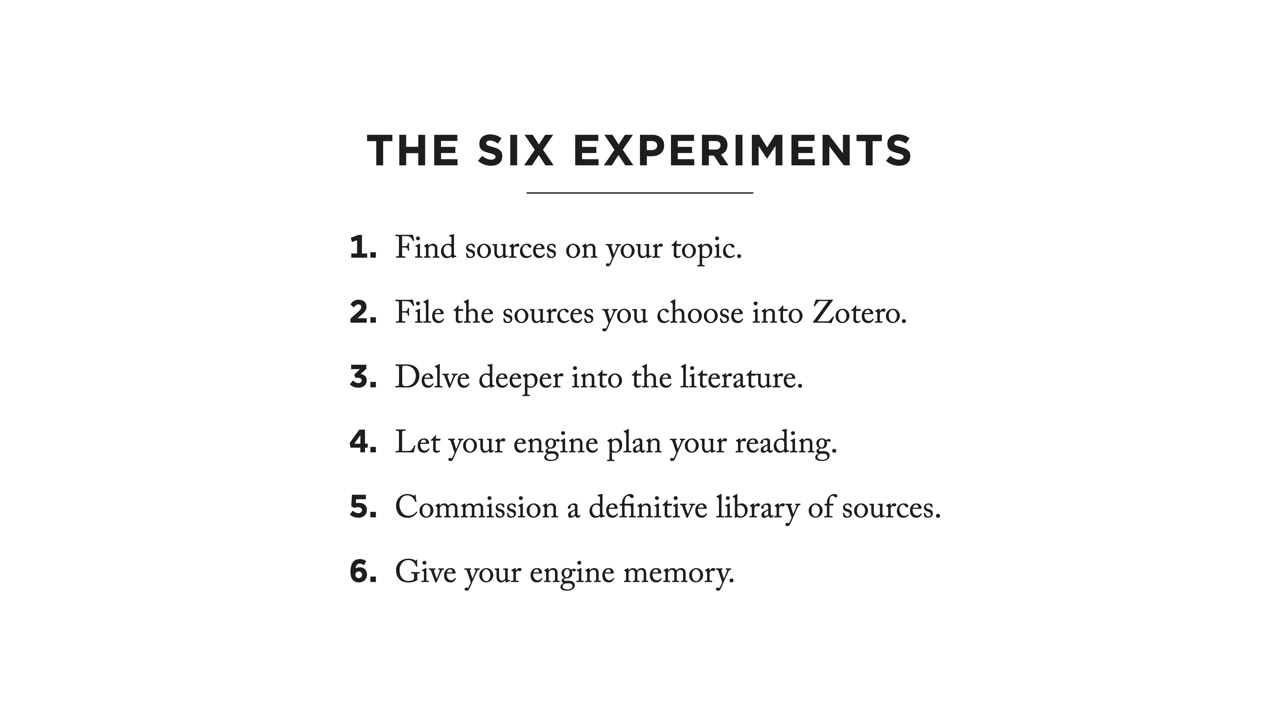
Look at what you did today. You built an engine. You sent it hunting. It filed what you chose. It delved deeper. It planned your reading. It delivered a definitive library. And now, it remembers you. Six experiments, one engine.
If today moved you forward, subscribe. There are many more experiments coming for your warrior path. The Dissertation Warrior® Book Series is available now, wherever you buy books.
When you want help to the finish line, join us in the The Dissertation Mentor® Accelerator Program or The Dissertation Mentor® One-To-One Mentorship. And team, read one article tomorrow. Much love.
Get all Dr. Guy's free stuff in one email! A dissertation treasure!
It's my purpose on this planet to help doctoral dissertation writers finish so they can graduate. I'll send you all my free stuff in one email. Then, I'll send you more amazing stuff as I create it! By signing up for our freebies, you agree to abide by our terms and privacy policy.

The Dissertation Mentor® Accelerator Program
Our flagship program for any dissertation writer wanting to graduate.
Topics
All Topics